
|
|
|

|
|
|
|
|
|
|
|
|
|
4 Install one or more device profiles for your monitor Right-click
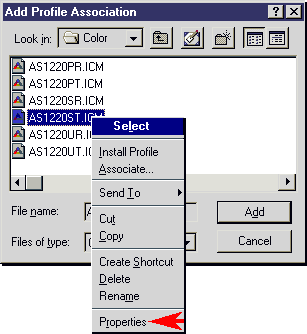
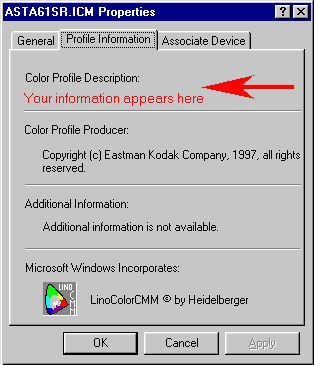
on your desktop > Properties > Settings > Advanced Profiles usually have unhelpful file names. Right-click a file name and select Properties to see what device a profile is for. It may take some trial and error to find the right one. There may be more than one profile for your monitor, for example for different White Point settings. Windows  Start Settings Printers Start Settings Printers
at the highest available resolution. |
  |
|
|
 |
Device profiles are files with the .ICM file extension and usually live in the: WINDOWS
SYSTEM
COLOR
folderCan't find a profile for your device? 1. Look for it on any
CD that may have come with your device You may be able to get
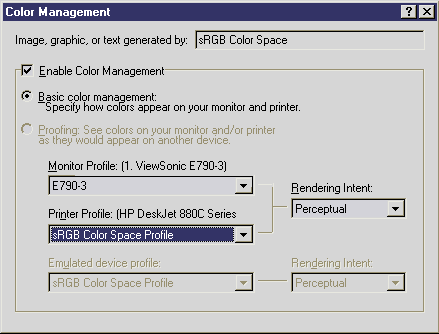
reasonable results by loading "sRGB Color Space Profile.icm". |
|
|
to the specific manufacturer and model number? Grantee Code = first 3 characters Product Code = remaining characters I'd start with a Google search: AMPJD144K or "AMP JD144K" driver or AMPJD144K or "AMP JD144K" ICM
|
|
Color Management stuff anyway? The problem with color is that different devices make it in different ways. Monitors produce light by exciting red-, blue- and green-emitting phosphors by bombarding them with an electron beam. This is called additive color. For instance, full intensity red, green and blue combine to give white. Printers use subtractive color. Light scattered from the paper makes it look white. Ink on the paper subtracts or absorbs certain colors and the remaining ones bounce off the paper back at you. For example, if the ink subtracts cyan and magenta, yellow is what you see. It also means that if you change the lighting white will look more yellowish or more bluish and if you print on pink paper getting any white is impossible. The end result of all this is that the range of color devices such as a monitor, or a printer, can display is not the same. The official name for this range is the color gamut of a device. 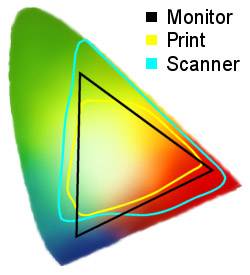 The picture shows examples of color gamuts. The colored horseshoe shape shows all the colors the human eye can see. The black triangle shows a typical gamut of a monitor. Colors inside the triangle can be shown on a monitor and those outside can not. The yellow shape shows the gamut of a printer. It does not reach all the way up to the top point of the monitor triangle. That means that greens you can see on the screen can't be rendered on the printer. However, the printer can render cyans that can't be made on a monitor because the yellow shape extends past the left side of the triangle. The blue line shows a scanner gamut, which can input almost every color that can be displayed on a monitor but also some that it cannot because the scanner gamut is roughly the same shape as the monitor gamut, only bigger. |
It means there is no such thing as "what you see is what you get" because it is simply impossible to render every monitor color on a printer. Color Management gets around this as follows. Each color gamut is mathematically related to a common reference color space. This common reference space allows devices to talk to each other in a common color language, so any device color space can be converted to any other via the common reference space. The conversion uses information from the device profile. In Windows the reference color space goes by the name sRGB and its gamut is similar to the monitor gamut. The conversion from device to reference color space is done by squishing or deforming the device gamut (officially called gamut mapping). There are a number of ways to do this squishing and how it is done is controlled by the Rendering Intent. The effect of all this is to hide the mismatch between the colors that can be displayed on a monitor and a printer. It does not, however, result in _exactly_ the same colors being displayed. As a result, Color Management helps you get better agreement between screen and print but is not a magic bullet that "makes color always come out the same everywhere". I need more. Windows Color Management http://www.microsoft.com/hwdev/devdes/icmwp.htm http://www.microsoft.com/HWDEV/color/default.htm More about sRGB http://www.srgb.com/ More about device profiles http://www.color.org/  Home Home  |
